

A few days before the show
If you’re unsure whether your hearing aids or phone will work, ask your hearing care provider. Campbell River Hearing Clinic helped set up this system and can check your setup with you. Call 250-914-3200 to arrange a connection check.
- Charge your devices. Bring your charged phone and listening devices.
- Download ahead of time. The theatre’s audio Wi-Fi has no internet for downloading apps.
Two ways to listen
or headphonesIf music from your phone plays through them, use the free Bettear app.Show Bettear steps WITH A COMPATIBLE DEVICEI know my device
has AuracastReceive the theatre’s broadcast directly.Show Auracast steps
YOUR LISTENING GUIDE
Connect with the Bettear app
Get the app before the show
Download Bettear before the show. You can connect to the theatre’s audio network when you arrive.
Calls through your hearing aids are a clue. If music from your phone already plays through them, that is a stronger clue. Compatibility can vary.
Open the Bettear app
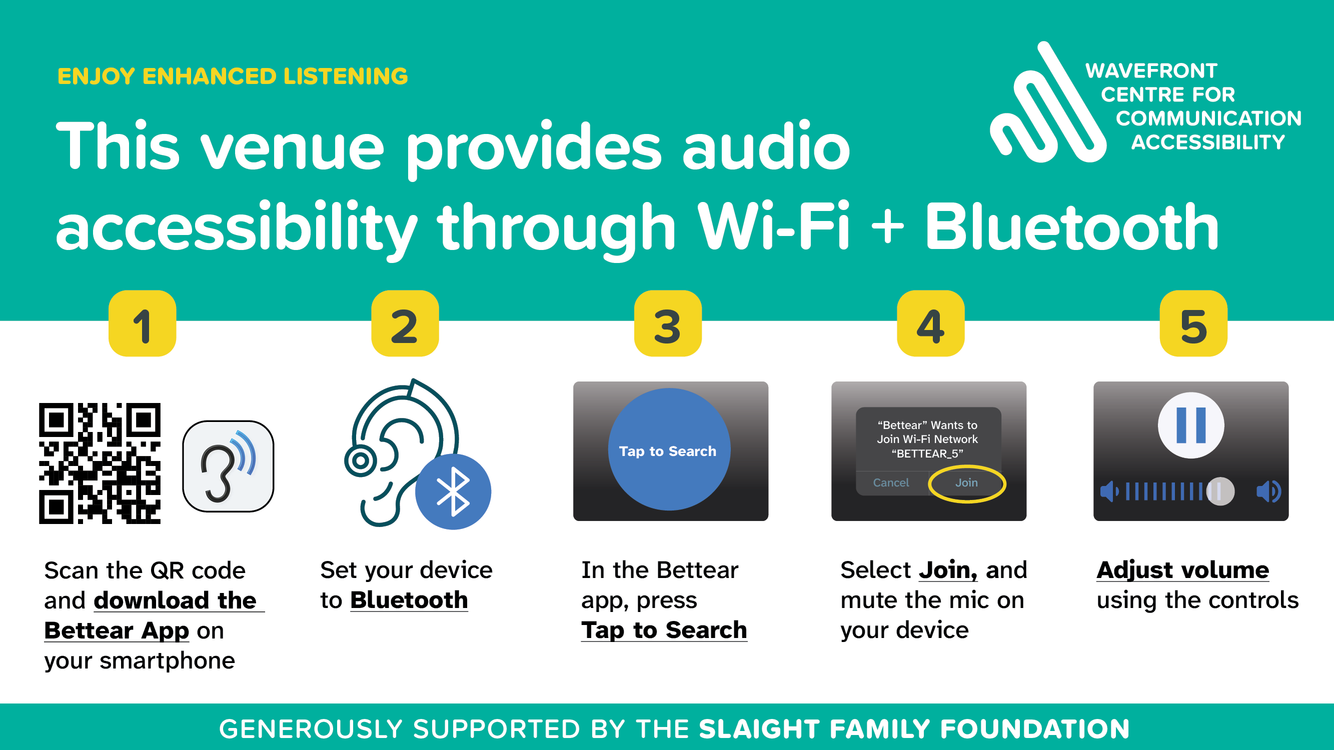
At the theatre, turn on Wi-Fi and Bluetooth. Open Bettear on your phone.
Tap to Search
Tap the blue Tap to Search circle to look for the theatre’s audio network.
Join the audio network
When Bettear asks to join BETTEAR_5, tap Join.
This network carries the show’s sound. If your phone asks, choose to stay connected.
Make yourself comfortable
Start at a low volume, then increase it gently. Use Bettear’s volume control or your phone’s volume buttons.
If you hear distracting room sound through your hearing aids, try reducing the microphone level in your hearing aid app. The control varies by device; we can show you.
Keep your phone with you. This route sends the show through your phone.
Control examples from Wavefront Centre’s supplied patron card. Your phone may look different. View the complete card ↗
YOUR LISTENING GUIDE
Connect with Auracast
Open your broadcast controls
If your hearing devices have Auracast enabled, look in their companion app or a compatible phone’s settings for Auracast or Broadcasts. The location depends on your device.
Your hearing-aid app may look like one of these:
Oticon Companion 
ReSound Smart 3D 
Beltone HearMax 
myPhonak 
Unitron Remote Plus 
My Starkey 
Signia App 
WIDEX ALLURE 
Bernafon App App icons help you recognize the app on your phone. They do not confirm that your hearing-aid model supports Auracast.
Select the theatre’s broadcast
Choose Tidemark Theater and follow the connection prompts. If your app asks for a code or you cannot find the theatre’s broadcast, ask for help.
Adjust your listening level
Start low and raise the volume until comfortable, using the controls supported by your hearing device. If room sound is distracting, ask us how to reduce the hearing aid microphone level.
A LITTLE EXTRA HELP
If you get stuck
I connected, but I can’t hear anything.
Check that your listening devices are on and charged, Bluetooth is on, and the volume is above zero. For Bettear, check that your phone has stayed on the theatre’s audio Wi-Fi. Ask a theatre staff member if you need help.
I don’t have a smartphone or Auracast.
The ways to connect at the Tidemark need your own phone. The theatre has no loan phones or receivers. Contact the clinic before your visit so we can discuss what may work for you.
How does it help?
Think of tuning in to a radio station. The system sends sound from the stage microphones to your listening devices, reducing your reliance on sound travelling across the room. Your result depends on the setup, your devices and your hearing.
Can I set it up at home?
You can download Bettear and charge your devices before the show. You can connect to the theatre’s broadcast or audio network only when you are there.
WE’LL WORK IT OUT WITH YOU
Bring your phone.
Bring your hearing aids.
Come and see us before your theatre visit. We’ll help you check your setup and show you what to do on your own devices.
Call 250-914-3200Campbell River Hearing Clinic

This listening system was delivered by Wavefront Centre for Communication Accessibility and Campbell River Hearing Clinic, with the Tidemark Theatre, generously funded by the Slaight Family Foundation.